Uploading Playwright Results with Auto Test Case Creation
This guide walks through the workflow for a QA engineer who has automated manual test cases from the Bistro Delivery project using Playwright and wants to report results back to QA Sphere — including automatically creating test cases in QA Sphere for any Playwright tests that don't yet have a matching case.
When to use --create-tcases
By default, playwright-json-upload requires every test in the report to reference an existing QA Sphere test case (via an annotation or a BD-XXX marker in the test name). If any test lacks a valid reference, the upload fails.
The --create-tcases flag changes this behavior: instead of failing, the CLI creates new test cases in QA Sphere for any unmatched tests and includes them in the test run. A mapping file is generated so you can update your tests with the assigned codes going forward.
This is useful when:
- You're starting fresh and have Playwright tests that don't reference QA Sphere cases yet
- You've added new tests and want them tracked in QA Sphere without manually creating cases first
Prerequisites
- Node.js 18+
- QAS CLI installed:
npm install -g qas-cli - Playwright project with JSON reporter configured
- A QA Sphere account with the Bistro Delivery project (project code:
BD) - A QA Sphere API token
Step 1: Configure environment
Create a .qaspherecli file in your project root (or export as environment variables):
QAS_TOKEN=your_api_token_here
QAS_URL=https://qas.eu1.qasphere.com
Step 2: Configure Playwright JSON reporter
In your playwright.config.ts, enable the JSON reporter:
import { defineConfig } from '@playwright/test'

export default defineConfig({
  reporter: [
    ['list'],
    ['json', { outputFile: 'test-results/results.json' }]
  ],
})
Step 3: (Recommended) Add test case annotations
If your Playwright tests already reference QA Sphere test cases, annotate them so the CLI can match them precisely. This is the recommended approach for existing test cases:
test(
  'Add item to cart',
  {
    annotation: {
      type: 'test case',
      description: 'https://qas.eu1.qasphere.com/project/BD/tcase/002',
    },
  },
  async ({ page }) => {
    // test code
  }
)
Alternatively, include the BD-XXX marker in the test name:
test('BD-002: Add item to cart', async ({ page }) => {
  // test code
})
Tests without an annotation or marker are the ones that will be auto-created when using --create-tcases.
Step 4: Run Playwright tests
npx playwright test
This generates test-results/results.json.
Step 5: Upload results with --create-tcases
qasphere playwright-json-upload test-results/results.json --project-code BD --create-tcases
The CLI will:
- Create a new test run in the BD project (named automatically, e.g.
Automated test run - Apr 22, 2025, 10:34:00 AM) - Match tests that have valid
BD-XXXmarkers or annotations to existing test cases - Create new QA Sphere test cases for any tests without a valid marker
- Upload pass/fail status for all tests
Any test cases that were not found in QA Sphere will be automatically created and placed in the cli-import folder in your project.
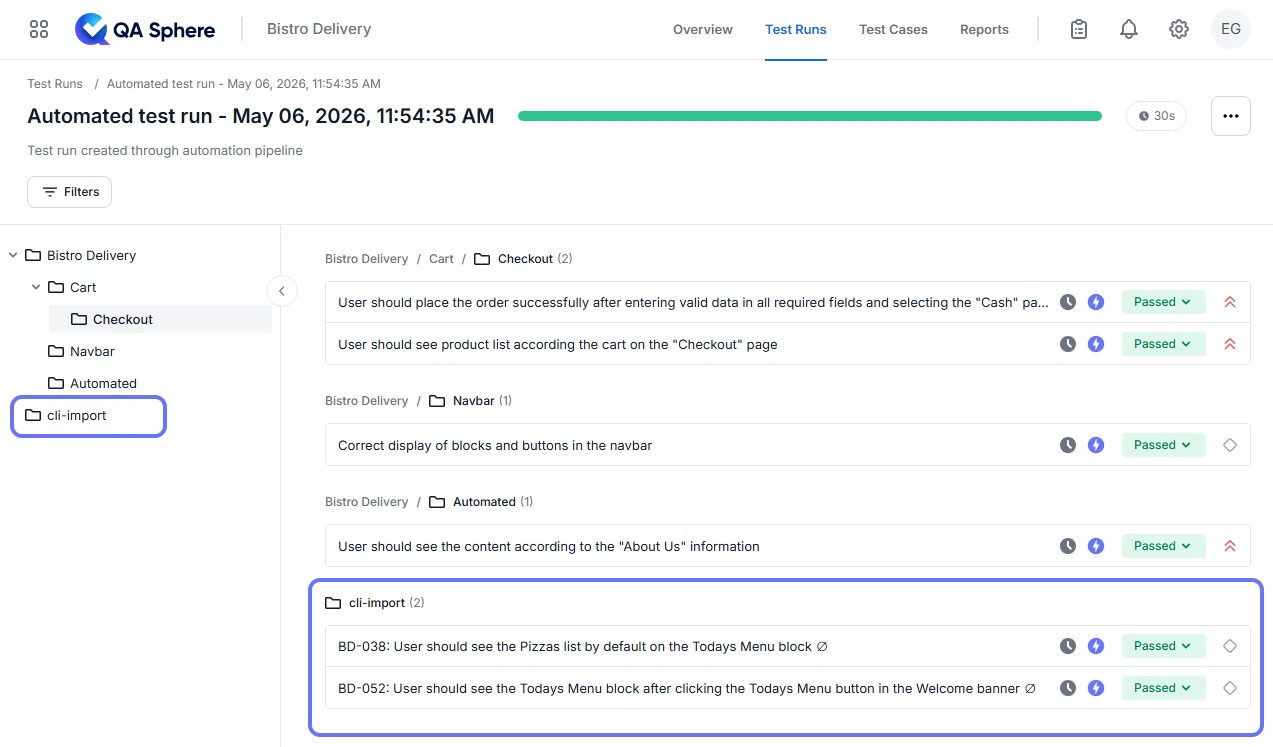
To give the run a meaningful name, add --run-name:
qasphere playwright-json-upload test-results/results.json --project-code BD --run-name "Bistro E2E - {YYYY}-{MM}-{DD}" --create-tcases
Step 6: Check the mapping file
After the upload, the CLI generates a mapping file in your working directory, for example:
qasphere-automapping-20250422-103400.txt
It lists the QA Sphere sequence numbers assigned to each newly created test case:
"Verify checkout total" → BD-025
"Validate empty cart message" → BD-026
Update your Playwright tests to include these markers so future uploads match the existing cases instead of creating duplicates:
test('BD-025: Verify checkout total', async ({ page }) => {
  // test code
})
Quick reference
| Goal | Command |
|---|---|
| Upload to a new run, auto-create missing test cases | qasphere playwright-json-upload results.json --project-code BD --create-tcases |
| Same, with a custom run name | qasphere playwright-json-upload results.json --project-code BD --run-name "Sprint 12" --create-tcases |
| Upload to an existing run (no auto-creation needed) | qasphere playwright-json-upload results.json -r https://qas.eu1.qasphere.com/project/BD/run/23 |
| Upload with screenshots attached | qasphere playwright-json-upload results.json --project-code BD --create-tcases --attachments |
| Suppress unmatched test warnings (without creating cases) | qasphere playwright-json-upload results.json --project-code BD --ignore-unmatched |
Notes
--create-tcasesonly works when creating a new test run (i.e., without--run-url). It cannot create test cases when uploading to an existing run.- Run the mapping file update step before your next CI run to avoid creating duplicate test cases.
- If you want to silence unmatched test warnings without auto-creating cases, use
--ignore-unmatchedinstead.