Traceability Report (Test Traceability Matrix)
The Traceability Report, also known as the Test Traceability Matrix (TTM), maps test cases to requirements, user stories, or features to ensure complete test coverage. This report is essential for regulatory compliance, release readiness verification, and requirement coverage analysis.
What This Report Shows
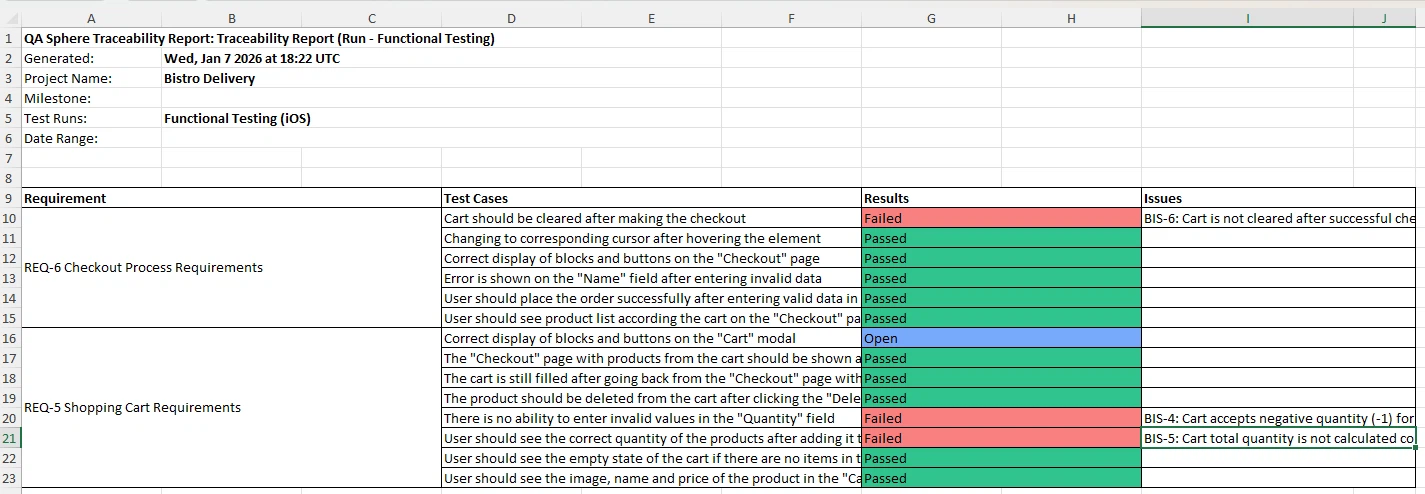
The Traceability Report displays:
- Requirements List: All requirements, user stories, or features linked to test cases
- Test Case Mappings: Which test cases validate each requirement
- Execution Status: Pass/fail status for tests linked to each requirement
- Coverage Gaps: Requirements with no associated test cases
- Linked Issues: Bugs or blockers associated with failed requirements
When to Use This Report
Use the Traceability Report when you need to:
- Verify requirement coverage before releases
- Demonstrate compliance for audits or regulatory requirements
- Identify testing gaps in requirement coverage
- Track requirement validation across test runs
- Prepare release documentation showing tested requirements
- Assess release readiness based on requirement pass rates
- Track defects blocking requirements and their resolution status
- Identify quality issues affecting requirement validation
Setting Up Requirements for Traceability
For the Traceability Report to display meaningful data, each test case must be linked to one or more requirements. Follow these steps to set up requirements and link them to test cases:
Step 1: Configure Requirements in Settings
Before you can assign requirements to test cases, you need to define them in your project settings:
- Navigate to Settings → Test Case Resources
- Locate the Requirements section
- Add your requirements, user stories, or feature references
- Save your changes
Step 2: Link Requirements to Test Cases
When creating or editing a test case:
- Open the test case editor
- Find the Requirement dropdown field
- Select one or more requirements that this test case validates
- Save the test case
You can link multiple requirements to a single test case if the test validates several requirements simultaneously.
Test cases without linked requirements appear in a "No Requirement" section at the bottom of the Traceability Report. While these test cases are still visible, linking them to requirements ensures better traceability and coverage analysis.
Understanding the Report
Traceability Matrix Structure
The report lists requirements as section headers, with test cases displayed in a table format below each requirement with three columns: Test Case, Results, and Issues.
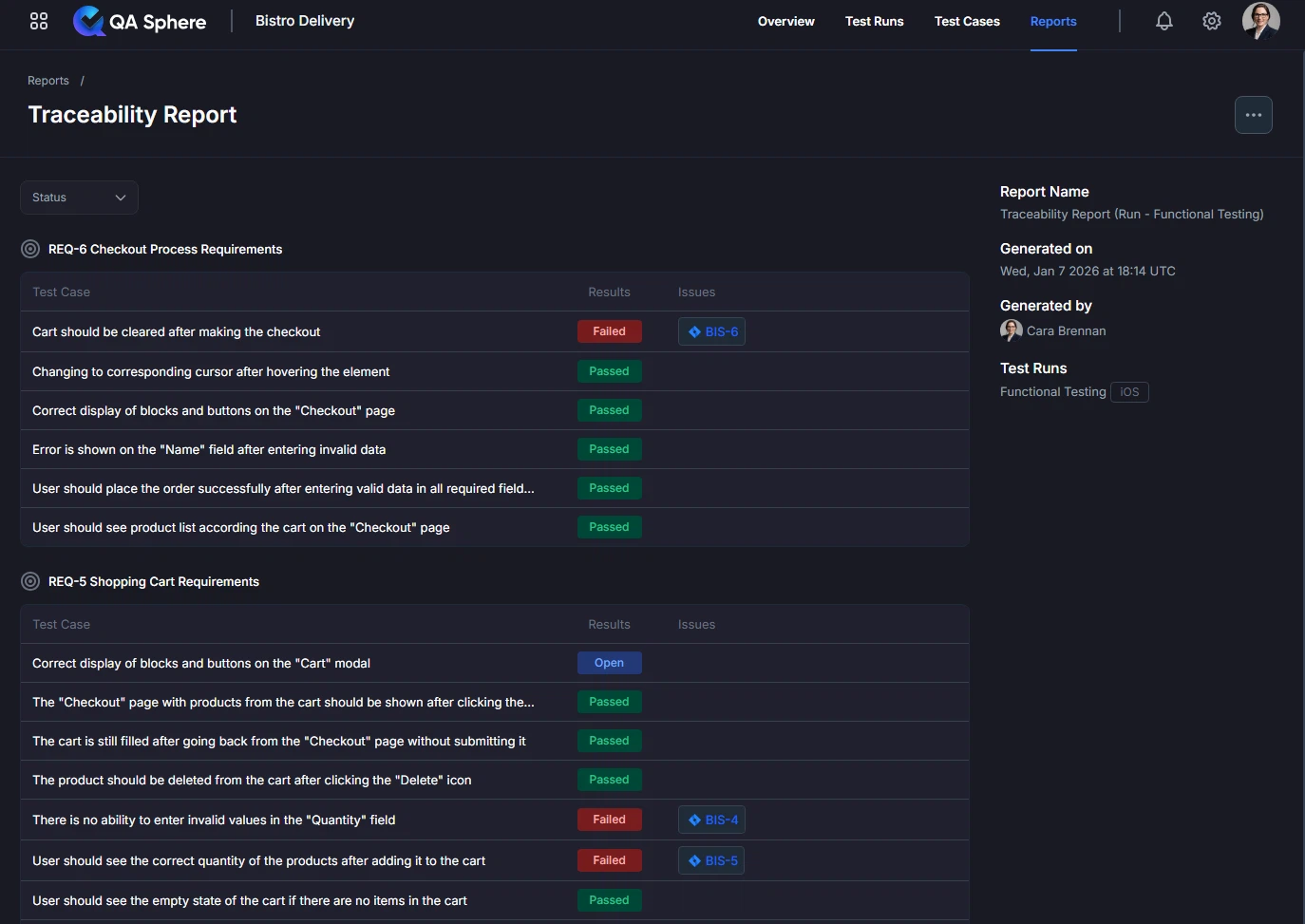
Table Columns:
| Column | Description |
|---|---|
| Test Case | Name of the test case linked to the requirement |
| Results | Execution status (Passed, Failed, Blocked, Open, Skipped) |
| Issues | Linked bugs or blockers displayed as clickable tags. The appearance and text format depend on the issue tracker type connected to your project (Jira, GitHub, Linear, etc.) and the project name configured in your issue tracker. Click to view full details in your issue tracker |
Status Badges
Each test case displays a status badge in the Results column:
- Passed (Green): Test executed successfully
- Failed (Red): Test failed one or more assertions
- Blocked (Orange): Test blocked by dependencies or issues
- Open (Blue): Test not yet executed
- Skipped (Gray): Test intentionally skipped
Defects and Issues in Traceability
When a test case fails, QA Sphere allows you to create a new issue or link to an existing issue in your integrated issue tracker. Each project can be connected to a specific issue tracker such as Jira, GitHub, Linear, Notion, GitLab, and others. For setup instructions, see the Issue Trackers section.
How Issues Appear in the Report
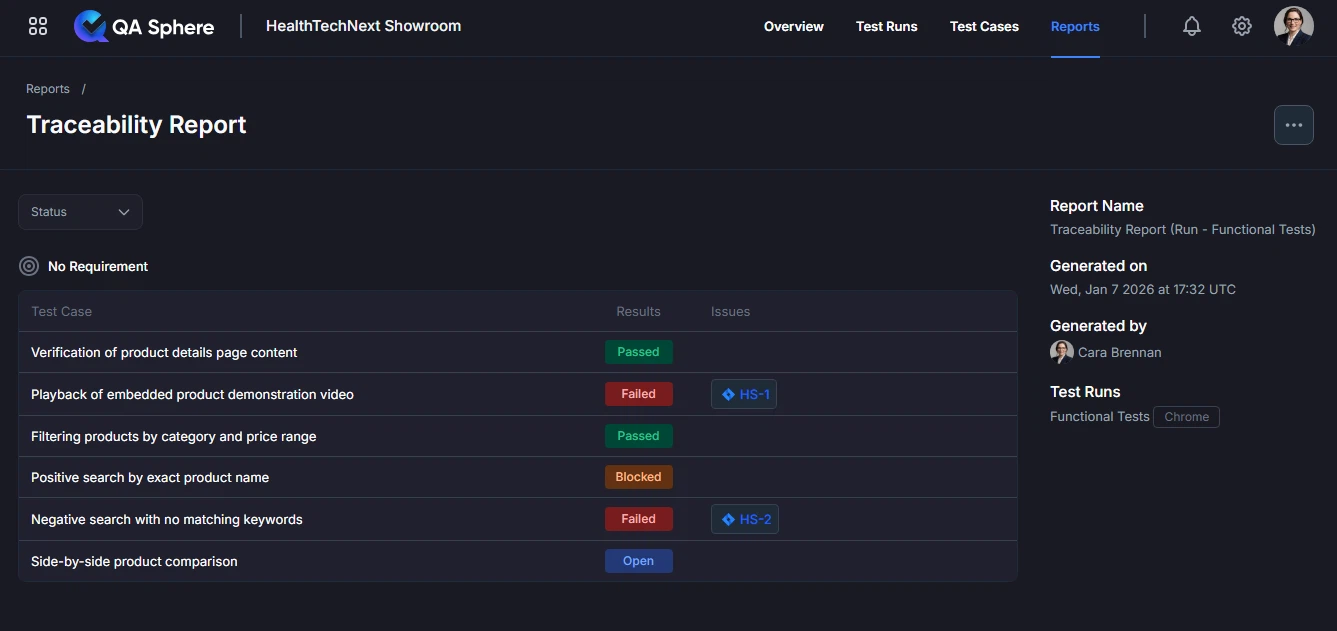
Issues linked to test cases appear as clickable tags in the Issues column. The tag appearance and issue ID format depend on your connected issue tracker type and the project name configured in that tracker.
Clicking an issue tag opens the full issue details directly in your issue tracker:
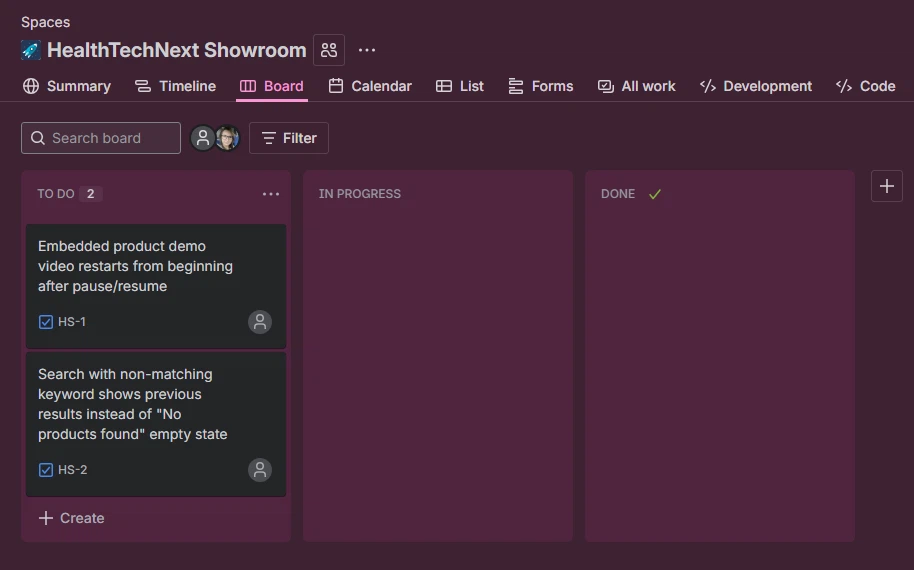
Key Points:
- Issues can be linked to test cases with Failed, Blocked, or other statuses
- All issue tags are clickable and open directly in your connected issue tracker
Generating the Report
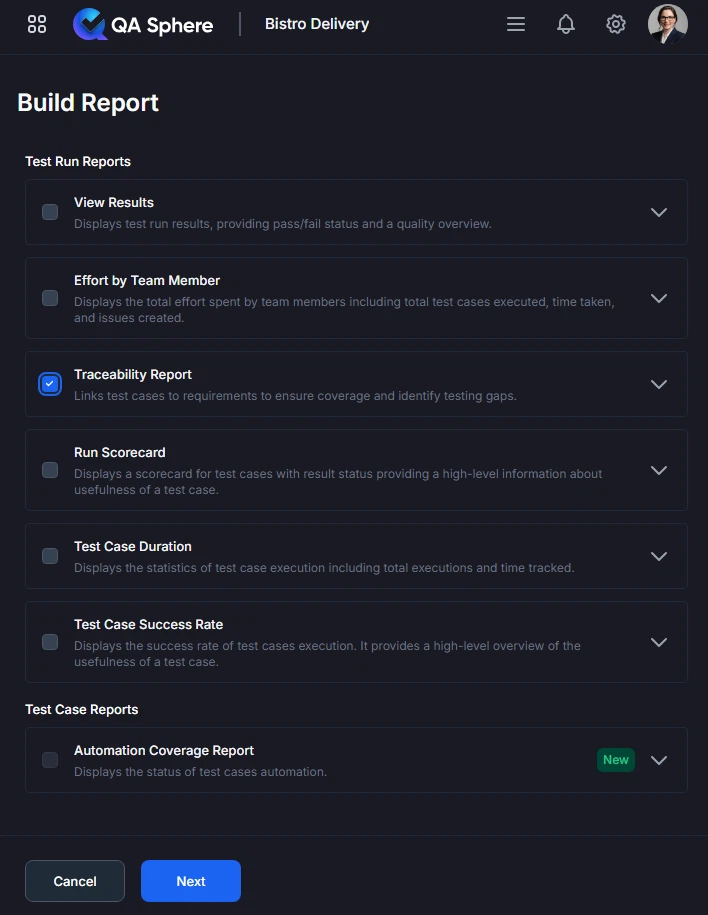
- Open your QA Sphere project
- Click Reports in the top navigation
- Select Traceability Report
- Click Next
- Choose the way to select test cases for the report: by Milestone, Test Run or time Period
- Click Build report
Filtering and Report Metadata
Status Filter: Use the Status dropdown at the top of the report to filter test cases by execution status (All, Passed, Failed, Blocked, Open, Skipped).
Report Metadata: The right sidebar displays the report name, generation date/time, generated by user, and associated test runs (displayed as tags, e.g., "Functional Testing" with platform tags like "iOS").
Export Options
Export XLSX:
- Raw data export for further analysis
- Open in Excel, Google Sheets, or BI tools
- Click ... and then Export XLSX button
Export PDF:
- Full report with charts and tables
- Professional formatting for stakeholder distribution
- Click ... and then Export PDF button
Print:
- Direct print for physical documentation
- Formatted for standard paper sizes
- Click ... and then Print button
Best Practices
1. Link Tests to Requirements Early
Best Practice: Link test cases to requirements during test case creation
Benefits:
- Ensures traceability from the start
- Prevents coverage gaps
- Simplifies compliance documentation
How to Link:
Test Case: "User can reset password"
Linked Requirements: REQ-042, REQ-043
Avoid: Creating test cases first, then linking requirements later.
2. Maintain One-to-Many Relationships
Best Practice: One requirement can have multiple test cases
Good Example:
REQ-015: User Authentication
├─ TC-101: Login with valid credentials
├─ TC-102: Login with invalid credentials
├─ TC-103: Login with expired session
├─ TC-104: Login with locked account
└─ TC-105: Logout functionality
Why: Comprehensive testing requires multiple test scenarios per requirement.
3. Track Coverage Metrics Over Time
Track These Metrics:
- Coverage Percentage: % of requirements with tests
- Pass Rate: % of requirements with passing tests
- Untested Requirements: Count of requirements without tests
Set Goals:
Sprint 1: 60% coverage, 70% pass rate
Sprint 2: 75% coverage, 80% pass rate
Sprint 3: 90% coverage, 90% pass rate  ← Goal
Sprint 4: 100% coverage, 95% pass rate ← Ideal
Track Progress:
- Review traceability report weekly
- Track coverage trends
- Celebrate improvements
- Address regressions immediately
4. Prioritize Based on Risk
High-Risk Requirements (Test First):
- Security-related
- Payment/financial
- Data integrity
- Core business logic
- Regulatory compliance
Medium-Risk Requirements (Test Second):
- User-facing features
- Configuration settings
- Reporting functionality
- API integrations
Low-Risk Requirements (Test Last):
- Cosmetic changes
- Documentation updates
- Non-critical UI elements
- Internal tools
Example Prioritization:
Sprint Test Creation Priority:
1. REQ-099: Encryption implementation (Security) - 5 tests
2. REQ-042: Payment gateway (Financial) - 8 tests
3. REQ-071: User registration (Core) - 6 tests
4. REQ-053: Dashboard widgets (UI) - 3 tests
5. REQ-014: Theme customization (Cosmetic) - 2 tests
5. Include in Definition of Done
Definition of Done Checklist:
- ✅ Code written and reviewed
- ✅ Unit tests created and passing
- ✅ Integration tests created and passing
- ✅ Test cases linked to requirements ← Traceability
- ✅ All requirement tests passing ← Coverage
- ✅ Documentation updated
- ✅ Code deployed to staging
Benefits:
- Ensures consistent traceability
- Prevents coverage gaps
- Makes traceability part of workflow
6. Regular Traceability Reviews
Recommended Cadence:
- Weekly: Quick coverage check during planning
- Sprint End: Full traceability review during retrospective
- Release: Comprehensive validation before deployment
- Quarterly: Audit readiness check
Review Checklist:
- All new requirements have linked test cases
- All critical requirements have passing tests
- Coverage percentage maintained or improved
- No orphaned test cases (tests with no requirements)
- No untested high-priority requirements
Related Reports
- Test Cases Results Overview: See test execution details for requirements
- Test Runs Scorecard Analysis: Compare requirement coverage across test runs
- Testing Effort Analysis: Time spent testing requirements
Getting Help
For assistance with this report:
- Verify requirements and test cases are properly linked
- Check the Reports Overview for general guidance
- Review your requirement management process
- Contact QA Sphere support: [email protected]
Quick Summary: The Traceability Report ensures every requirement is tested. Use it before releases to verify coverage, during audits for compliance, and during planning to identify gaps. The report tracks defects linked to failed tests, helping you assess release readiness and prioritize fixes. Aim for 100% coverage of critical requirements and 90%+ overall. Link test cases to requirements from the start, and link defects when tests fail to maintain complete traceability.